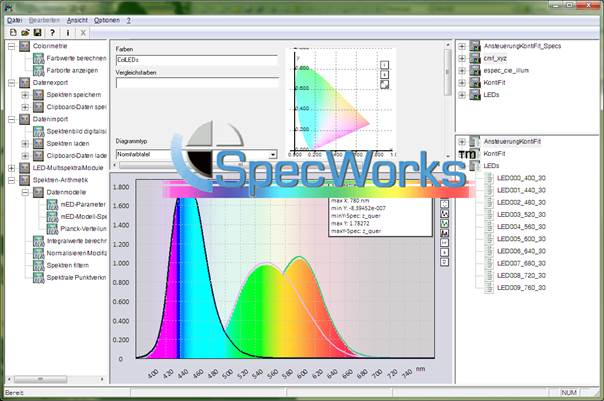
Zentrum für Bild- und Signalverarbeitung e.V.
Werner-von-Siemens-Str. 12
98693 Ilmenau
E-Mail: specWorks@zbs-ilmenau.de
www.zbs-ilmenau.de bzw. www.zbs-ilmenau.de/specWorks
SpecWorks™ is a modularly expandable framework for calculations and algorithms involving spectral data, as well as for prototyping spectral processing sequences. For this purpose, the program provides an environment in which spectra can be comprehensively managed, processed, and visualized. The program's functionality is contained within separate modules that operate together on a shared data pool within the framework. In addition to the core functionalities, both context- and application-specific functional modules are available.
SpecWorks™ is an SDI application. A document comprises a complete workspace containing a collection of spectral data, non-spectral auxiliary data, and modules, including their currently applied module settings. The entire workspace can be saved and reloaded through the file menu or the toolbar. An internal XML-based format is used to save these workspaces.
Note: SpecWorks™ requires a valid user license to operate. You can find the license file in the Windows system folder "ProgramData" in the subfolder "\ZBS e.V\SpecWorks™". Here you can also find additional work data and examples.
The SpecWorks™ main window is divided into several areas.
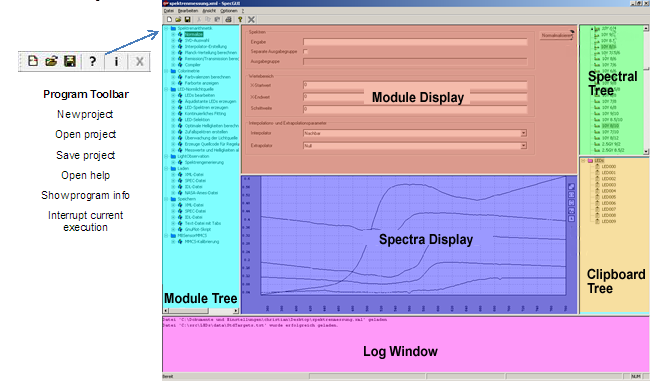
SpecWorks™ GUI 2018 with program areas (the UI appearance may vary in the course of program development)
The Module Tree / Module Area (cyan) displays all available modules. Selecting a module activates it, and its corresponding parameter dialog is displayed in the Module Display area (red). Within this dialog, the parameters of the algorithms are adjusted, data references to the spectral or clipboard data areas are defined, and the desired operations are subsequently executed. Right-clicking on a selection within the module tree opens the corresponding help file.
When switching modules, the most recently used parameter settings are saved.
Note: The module configuration of SpecWorks™ is user- and application-specific.
The Spectral Tree / Spectral Data Area (green) holds all spectra of the current workspace. All modules obtain their spectral input data from here or output spectral output data to this location.
The Clipboard Tree / Clipboard Data Area (orange) holds and manages non-spectral, typically numerical data (for example, color values from colorimetric analysis, measured values, control values, calibration information, model and metadata, etc.).
The Spectra display (blue) shows the elements selected in the spectral tree. The displayed section can be interactively panned (left mouse button) and scaled (mouse wheel or Numpad + and -). The display can be customized using the option fields on the right edge of the window (Spectral Toolbar). Further settings can be accessed via the menu Options/Display Options (see below).
The Log Window (magenta) outputs information or status messages about the executed actions and logs intermediate results during longer calculations.
SpecWorks™ utilizes two different types of data objects. The most essential characteristic of a data object for storage and the control of various operations is its Name.
Right-clicking on a spectral or clipboard data object provides more detailed information in the log window.
These objects store numerical or meta-parameters that can be derived from the processing of spectra. An internal clipboard data object has a global name as well as parameter entries that are assigned to data types, which can also be assigned an individual name. Clipboard objects are typically generated by or through processing modules and are not editable within SpecWorks™, with the exception of the name.
Note: One possibility for modification is saving, editing, and reloading a clipboard data object (see the operator group SpecWorks™ - Data Import/Export for more details).
These objects store spectral data as discrete sequences of numbers within a defined wavelength interval (start and end point) and in arbitrary steps. The step size can be equidistant or non-equidistant. An internal spectral data object furthermore carries a global name as well as the display color selected for visualization. Spectral data objects are either loaded or generated by processing modules. The name is editable at any time.
Note: Arithmetic operations involving different spectra always require the alignment (normalization) of the discrete domains. This involves converting the spectral data object to an equidistant wavelength sampling grid (see the core module Normalize/Modify).
The data areas for spectral and clipboard data are organized in a tree-like folder structure. Data objects can be kept standalone or assigned to folders. The assignment to folders is determined by the name of a data object. Names containing the control character ":" indicate assignment or subordination to a folder.
Note: Designations of data objects must always be unique, as access is carried out through them. In the event of a name conflict during writing, a warning about this conflict is displayed and the data is ALWAYS overwritten. Generally, SpecWorks™ ensures that objects with an empty folder name or object name are corrected before insertion by removing empty identifiers.
The folder display of the spectral and clipboard data areas is sorted alphabetically by default. By deselecting the menu item View/Automatically Sort Data Folders, it is also possible to display the data sorted chronologically.
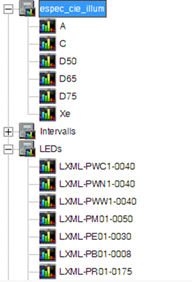
Manual entry of data from the trees is performed via text input fields in the dialogs. These describe the paths from the root to the desired nodes by separating the respective node designations with colons. If the path does not directly address a single spectrum or clipboard object, but instead ends at a group of spectra or objects, all spectra (objects) lying below that group node are targeted. Multiple paths can be specified by separating them with semicolons.
|
|
To address the leaf node, spectrum A, according to the adjacent spectral tree, you must specify: “espec_cie_illum: A” To address all nodes within the group espec_cie_illum, use: “espec_cie_illum” For example, to specify the leaf node espec_cie_illum: A from the group espec_cie_illum and the node LXML-PWC1-0040 from the group LEDs, the following must be entered: “espec_cie_illum: A; LEDs: LXML-PWC1-0040” The data area for clipboard data is to be used in the exact same manner. |
As a rule, spectral and non-spectral input data for the algorithms can also be provided for all modules by dragging & dropping items from the spectral or clipboard tree into the corresponding input fields.
Right-clicking on a data element in the spectral or clipboard area provides more detailed information and metadata about the data element in the log window.
After launching the program, a new, empty workspace is displayed. The spectral and clipboard trees contain no elements. All module settings contain default values.
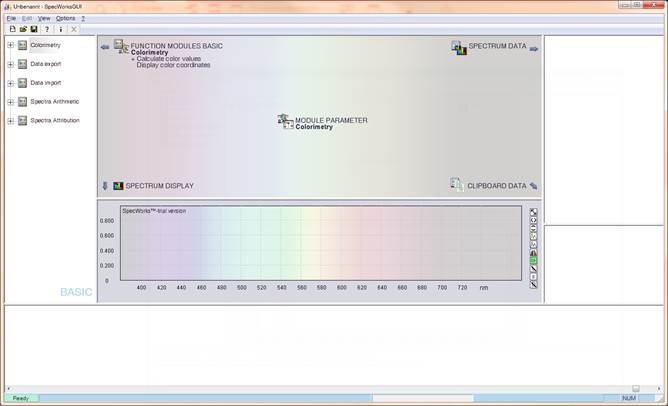
SpecWorks™ - Start Screen, GUI 2026 (the module configuration depends on the license)
An existing project is loaded via the menu item File/Load Project. Prior to this, you may be prompted to save the current editing state under certain circumstances. A project file comprises a program state containing both data and parameters of processing modules.
Note: After successful loading, the processing module last used in the project is displayed in the log window. This provides a helpful note indicating where you last worked.
It is possible at any time to create a new project with an empty data area and modules in their default state via the menu item File/New Project. Prior to this, you will be prompted to optionally save the previous editing state.
In the case of an empty project, data from external files can be imported into the current workspace by the modules located under the Data Import node. Depending on the version, various import filters are available for this purpose. The option dialogs in the module display guide you through the data import process and provide necessary notes regarding data formatting. The storage location (tree node) within the spectral or clipboard data area is also defined within the modules. Alternatively, the name of the storage location can be generated automatically from the file name.
Modules under the Data Export node similarly allow data to be saved to external files.
Note: Import and export options and functions of SpecWorks™ depend on the license.
Note: For further information regarding data import and export, please refer to the operator group SpecWorks™ - Data Import/Export.
 When spectra or spectral groups are selected, the respective data is automatically shown in the spectra display or updated upon switching.
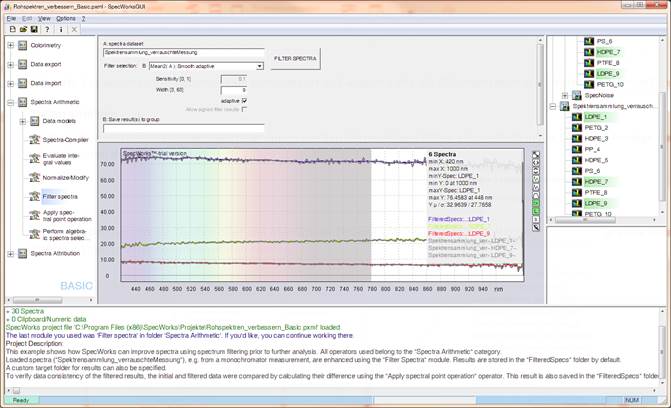
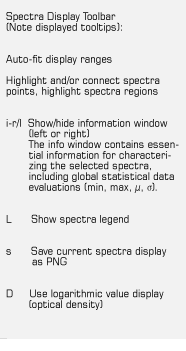
SpecWorks™ with options of the Spectra display Toolbar
Further extensive settings for the spectra display can be configured via the Spectra display Toolbar or the menu item Options/Display Options.
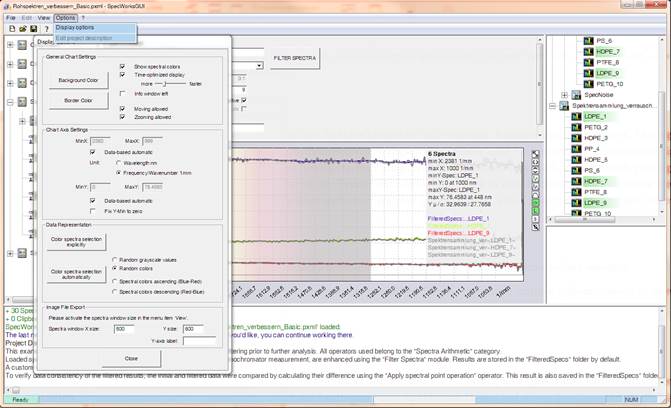
SpecWorks™ with settings dialog for spectra display options
These include diagram settings (representation of spectral colors in the VIS interval, position of the info window, definition of the foreground and background color of the diagram), coordinate settings (parameters and units of the displayed spectral and spectral value range), as well as defining the display colors of selected spectra (manually, automatically random, as well as spectral colors in ascending or descending order). Exporting the spectra display to an image file is possible via the toolbar (see SpecWorks™ - Data Import/Export operator group). Selected display colors are adopted as parameters of a spectral dataset and saved in the SpecWorks™ spectral file.
Note: Spectral datasets can also be selected and manipulated while the diagram settings dialog is open.
Right-clicking on a spectral or clipboard data object provides more detailed information about the data objects in the log window.
A frequently required processing step after importing data and prior to processing spectral data from different sources is normalization. Normalization is the definition of spectral data to a specific wavelength range and with a specific (equidistant) step size (spectral registration), as well as the adjustment of spectral values as needed (value range normalizations).
For this purpose, SpecWorks™ provides the powerful and versatile module Normalize/Modify. Activating the module displays the corresponding dialog. Selected entries from the spectral tree can be dragged & dropped into the Input text field. Unless another processing target is specified, the normalization module overwrites the input data with the processed data. If this is not desired, a different target location in the spectral tree can be specified in the Output Group text field by checking the Use Separate Output Group checkbox.
The spectral interval to be established and the equidistant step size can be specified in the respective text fields under the Target Domain Normalization section or can be adopted from other spectral data in the spectral tree (by dragging & dropping into the Reference Spectrum field). The desired interpolation and extrapolation methods for resampling and extending the domain are selected in the Interpolator and Extrapolator selection lists. Furthermore, wavelength shifts are also possible as part of manipulating the domain. Clicking the START button calculates the output data and inserts it into the spectral tree.
In conjunction with normalization, further manipulations of the spectral selection are possible. These include the numerical manipulation of spectral values (0-clipping, scaling, offset, auto-max normalization) as well as the option for string-specific selection from the spectral name or the random selection of a set quantity in the Random Quantity (>0) input field.
For example, by entering “TVF; SOF” in the input field Select by String(s)…, all spectra that contain “TVF” or “SOF” as a string in their name will be output normalized.
The search string can optionally be added to a separate target folder (option Use Separate Output Group) by selecting the output option Automatically Append Group Name.
Note: More comprehensive information on this SpecWorks™ core arithmetic module can be found in the SpecWorks™ - Spectra Arithmetic operator group.
Specifying spectral names in the corresponding input field can also easily be done by dragging & dropping any selection from the spectral tree.
Note: This allows name-based searches within spectral collections to be performed easily in parallel with normalization.
In an analogous manner, parameterized calculations can be carried out with data from the spectral and clipboard trees in all other functional modules.
Note: Further information on other SpecWorks™ core arithmetic modules can be found in the SpecWorks™ - Spectra Arithmetic operator group.

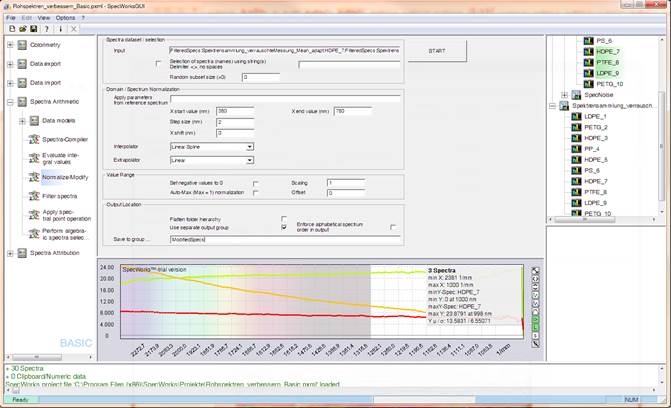
SpecWorks™ with settings dialog for the Normalize/Modify module
The entire workspace can be saved in an XML-based format via the menu items File/Save Project or File/Save Project As. By loading a file via the menu item File/Load Project, the entire state of the program (all spectra and clipboard data, as well as all parameters configured in the modules) can be restored.
Note: Important, frequently required functions of SpecWorks™, such as creating a new project, opening or saving a project file, requesting program or license information, or canceling an operation, can be selected via the program toolbar.
In addition to the internal data formats for spectral and clipboard data (numerical, non-spectral data), SpecWorks™ provides further options for importing/exporting spectral and clipboard data from and into images, as well as via simply formatted and easily generated ASCII files. These are documented below.
For data storage after data import or for internally generated clipboard data, the program's own XML-based storage formats, with the modules to save in SpecWorks™ spectra file (*.xml) or SpecWorks™ clipboard file (*.xml), are recommended! These contain useful meta-information for describing the data.
SpecWorks™ offers the possibility to save spectrum views as images for operator group or publication purposes.
To use this feature, use the [s] button located on the right edge of the spectrum window in the toolbar.
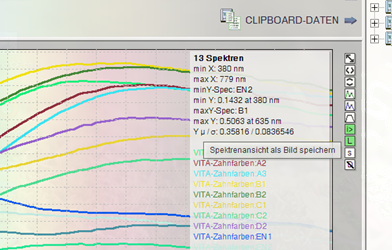
The image file export is carried out in PNG-24 format.
The file is saved in the size and format of the current spectrum window. For this purpose, the display options are temporarily set internally to the highest quality.
If you require a recurring, identical output window size, e.g., for presentations, use the configuration options in the spectrum display settings.
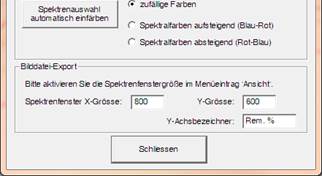
Here you can define a fixed horizontal and vertical spectrum window size, as well as an axis label for the value axis. The configured window size is applied when you select the program menu item View Adjust Window Layout for File Output of Spectrum Display.
SpecWorks™ offers the possibility to acquire spectrum values from spectrum images, e.g., scanned data sheets or other visually digitized spectrum sources.
To do this, select the module Digitize Spectra Image in the Data Import operator section.
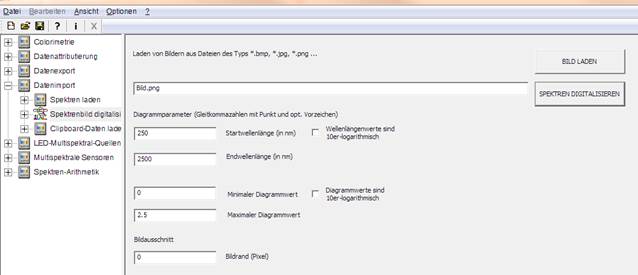
In the input dialog, the start wavelength, the end wavelength in nm, the minimum and maximum chart value, as well as a pixel image margin for a more detailed image display and evaluation are defined. In the case of charts with a logarithmic wavelength or value scale, please check the options Wavelength values are base-10 logarithmic or Chart values are base-10 logarithmic for correct value acquisition. All dimensions and specifications can usually be taken from the spectrum image to be digitized.
By clicking the LOAD IMAGE button, you select the spectrum image file (formats like BMP, JPG, PNG, … are supported). The position and orientation of the spectrum chart within the image is largely arbitrary.
The digitization of the spectrum image is carried out by clicking the Digitize Spectrum button. If you notice in the digitization dialog that the parameters are not optimally defined, close the dialog with Cancel, change the parameters, and click the Digitize Spectrum button again.
The digitization process is user-guided and is performed by mouse-based marking of points along the spectrum path to be digitized (indicated below in the image and in the dialog window by red dashed lines) within the marked chart area (indicated below in the image and in the chart window by green dashed lines). Please follow all instructions and dialog outputs in the image window!
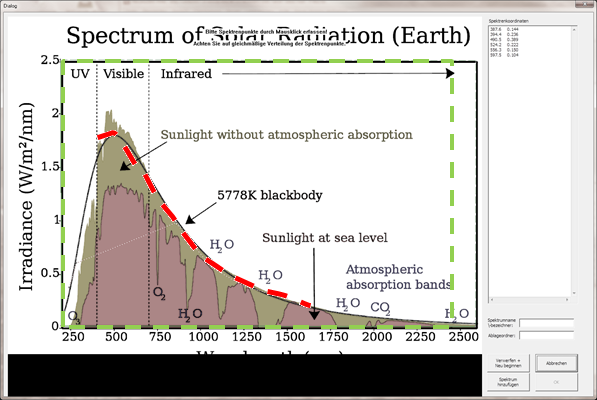
The spectrum output is generated by clicking the Add Spectrum button into the spectrum data area at the location specified in the Save in… field. In the input dialog, you can specify a specific storage location and name under Spectrum Name/Identifier and Storage Folder.
By clicking the Discard + Start New button, you can cancel the input at any time and start over.
Note 1: When acquiring a spectrum point by point, first try to capture the convex shape. If necessary, you can refine the data by subsequently positioning intermediate points.
Note 2: For correct value acquisition, ensure that the spectrum image is not geometrically distorted. Isometric distortions (rotations, translations) are corrected when defining the window area.
Note 3: Due to the non-equidistant data acquisition, digitized spectra must ALWAYS be normalized with the Normalize/Modify module before further processing.
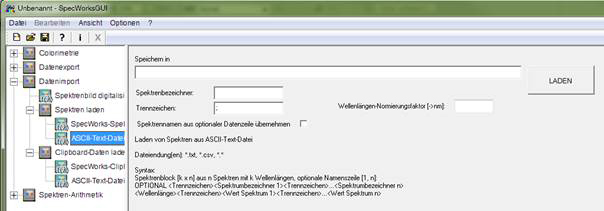
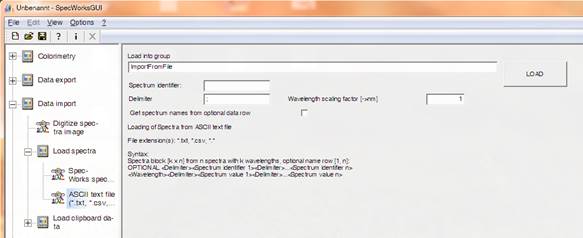
To import spectrum data from ASCII files, select the module ASCII Text File (.*, .txt, .csv) from the section Data Import/Load Spectra. ASCII files can be easily generated automatically or provided, for example, from Excel by exporting in csv format.
In the settings dialog, one or more files are selected by clicking the LOAD button and imported in accordance with the dialog settings.
The optional entry in the Spectrum Name field defines an ascendingly indexed name for the read-in spectrum/spectra. If no name is specified, the default name “Spec” is used for spectra. Alternatively, if the selection Apply spectrum names from file is activated, spectrum names will be taken from the first line of the file instead. The spectrum names are separated by the delimiter (or space) defined in the dialog.
Spectrum data is imported in the form of a spectrum block in the format specified in the dialog. A spectrum block contains line-by-line, starting with the wavelength, the corresponding k values (data points) of n spectra. The values in a line are separated by spaces or an explicitly specified delimiter (input field Delimiter). The decimal separators “,” (comma) and “.” (period) are not allowed as delimiters. The decimal number format of all values can be arbitrary. Integer values are also possible.
SpecWorks™ internally uses the wavelength specification in nm. In case of a deviating wavelength specification in the import data, it is possible to convert it during import by entering a scaling factor in the input field Wavelength Normalization Factor [->nm].
Imported data is stored in the spectrum data area at the location defined under Save in or at a location automatically generated from the file name.
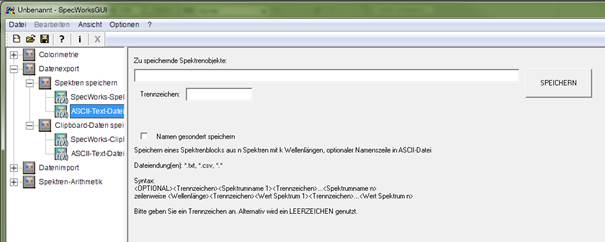
The export of spectral data into an ASCII file is carried out in the module Character-separated ASCII text file (*.txt, *.csv, *.*) from the section Data Export/Save Spectra.
In the settings dialog, data sets are exported from the spectrum data area by clicking the SAVE button (via Drag&Drop or by manually naming the data set(s) in the input field Spectrum objects to be saved), taking the dialog settings into account.
Spectral data is exported line by line in the format specified in the dialog. The storage of the spectrum data sets is carried out with an optional initial name line (the spectrum names) followed line by line by the wavelengths and a sequence of n corresponding numerical spectral values. The decimal number format of all numerical values can be arbitrary. Integer values are also possible.
The values of each line are separated by a delimiter or a space. The delimiter can be chosen largely freely in the Delimiter input field. The decimal separators “,” (comma) and “.” (period) are not allowed as delimiters.
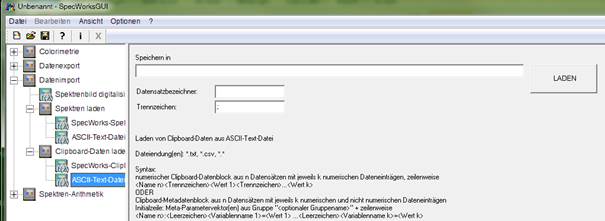
To import numerical clipboard data from ASCII files, select the module ASCII Text File (.*, .txt, .csv) from the section Data Import/Load Clipboard Data.
In the settings dialog, one or more files are selected by clicking the LOAD button and imported in accordance with the dialog settings.
The entries in the Data Set Name field define an ascendingly indexed name for the read-in data set(s). If no name is specified, the default name “ClpObj” is used.
Clipboard data is imported per data set or line by line in the format specified in the dialog. A data set consists of a name and a sequence of k numerical values without name designations. The values in a line are separated by spaces or an explicitly specified delimiter (input field Delimiter). The decimal separators “,” (comma) and “.” (period) are not allowed as delimiters. The decimal number format of all values can be arbitrary. Integer values are also possible.
Imported data is stored in the clipboard data area at the location defined under Save in or at a location automatically generated from the file name.
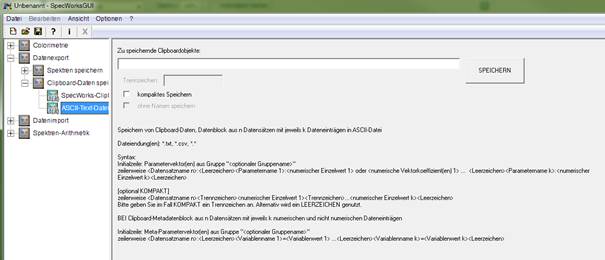
The export of clipboard data into an ASCII file is carried out in the module Character-separated ASCII text file (*.txt, *.csv, *.*) from the section Data Export/Save Clipboard Data.
In the settings dialog, data sets are exported from the clipboard data area by clicking the SAVE button (via Drag&Drop or by manually naming the data set(s) in the input field Clipboard objects to be saved), taking the dialog settings into account.
Clipboard data is exported per data set or line by line in the formats specified in the dialog. The storage of numerical values is carried out with an initial line followed line by line by a data set name and a sequence of numerical values including an identifier string. The numerical values of a line are separated by a space, while non-numerical values are separated from numerical values by “:”. The decimal number format of all numerical values can be arbitrary. Integer values are also possible.
If the option compact saving is selected, the data set is stored line by line with the name and a sequence of numerical values, each separated by a delimiter (or space). The delimiter can be chosen largely freely in the Delimiter input field. The decimal separators “,” (comma) and “.” (period) are not allowed as delimiters.
SpecWorks™ and its functional libraries are proprietary developments of ZBS e.V. Ilmenau.
SpecWorks™ utilizes libxml2.dll (iconv.dll), an open-source program library for parsing and generating XML documents. libxml2 is released under the MIT License.
SpecWorks™ incorporates and uses the FANN (Fast Artificial Neural Network) library (Copyright (C) 2003–2016 Steffen Nissen (steffen.fann@gmail.com) and contributors).
FANN is licensed under the terms of the GNU Lesser General Public License (LGPL), Version 2.1 (or any later version). A copy of the LGPL license is
included with this software. The original source code of FANN can be obtained freely from github.com.
In accordance with the LGPL terms, please note that the FANN library has been embedded as a static component within this application.
ZBS e.V. assumes no responsibility or liability for any consequential damages resulting from the use of SpecWorks™.
Any use of this program operator group for other purposes requires the prior consent of ZBS e.V..
Copyright(C) 2011-2026 ZBS e.V.